Local Installation: MacOS
1. Prepare Python Environment
You will first install Miniconda, then create a Python 3.11.3 virtual environment.
Step 1: Install Miniconda
Download the correct installer for your Mac:
Apple Silicon (M1/M2/M3, ARM64): https://repo.anaconda.com/miniconda/Miniconda3-latest-MacOSX-arm64.sh
Intel (x86_64): https://repo.anaconda.com/miniconda/Miniconda3-latest-MacOSX-x86_64.sh
Open Terminal:
Press Command (⌘) + Space, type Terminal, and press Enter
Run the installer for Miniconda:
Apple Silicon (ARM64):
bash Miniconda3-latest-MacOSX-arm64.sh
Intel (x86_64):
bash Miniconda3-latest-MacOSX-x86_64.sh
Follow the prompts and agree to the license terms.
Allow the installer to initialize Miniconda (usually by adding it to your shell’s PATH).
Restart Terminal and verify installation.
Open Terminal:
Press Command (⌘) + Space, type Terminal, and press Enter
In the terminal window, type
conda --version
You should see the conda version displayed. If not, check your PATH settings.
Step 2: Create and Activate a Python 3.11.3 Virtual Environment
Open Terminal (see Step 1.2).
Create a new Python 3.11.3 conda environment by typing the following into terminal:
conda create -n aihqenv python=3.11.3
note that aihqenv is the name of your environment. You can replace it with any name of your choosing.
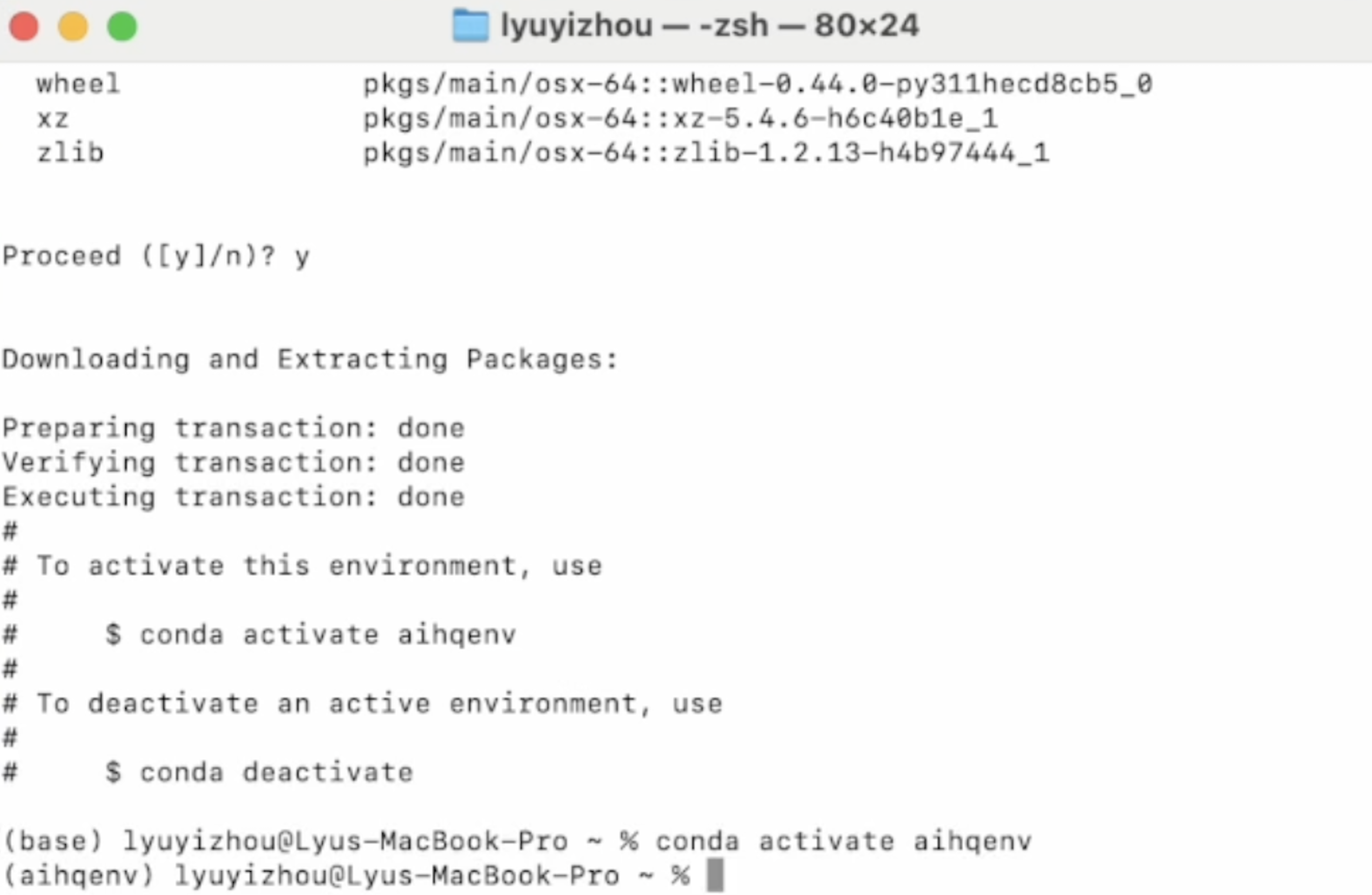
Activate the environment:
conda activate aihqenv
Your prompt should now show
(aihqenv)to indicate the environment is active:
2. Install automated-AIHQ
Step 1: Download the automated-AIHQ
Visit the repository page: https://github.com/lyulouisa/Website_AIHQ_rating
At the top-right area of the page, just above the list of files, you’ll see a green button labeled
<>CodeClick the <> Code button, and in the menu that appears, choose “Download ZIP.” This will download a ZIP file of the website folder onto your computer with the name “Website_AIHQ_rating-main.zip”
Extract the ZIP file:
Once the ZIP file finishes downloading, open your Downloads folder (or wherever your browser saves files).
Look for a file named Website_AIHQ_rating-main.zip.
Double-click the ZIP file. Your Mac will automatically unzip it into a folder with the same name (but without .zip at the end). Alternatively, you can right-click the zipped folder and select Open With → Archive Utility to unzip the folder.
You should now see a folder called Website_AIHQ_rating-main. This is the automated-AIHQ tool.
Download the fine-tuned Flan-T5-large model (you can ignore this step if you do not intend to use this model)
There are three options to download the model:
Zenodo: https://zenodo.org/records/16730672 (download the zipped folder)
Dropbox: https://www.dropbox.com/scl/fi/8knvlq83r9j031axqiqq7/AIHQ_rating.zip?dl=0
Hugging Face: https://huggingface.co/lyulouisaa/flant5-finetuned-aihqrating You will need to download each file directly and save it in a folder titled:
flant5-large-finetuned
Once the download is complete, double-click to unzip. You should see a folder named
flant5-large-finetuned
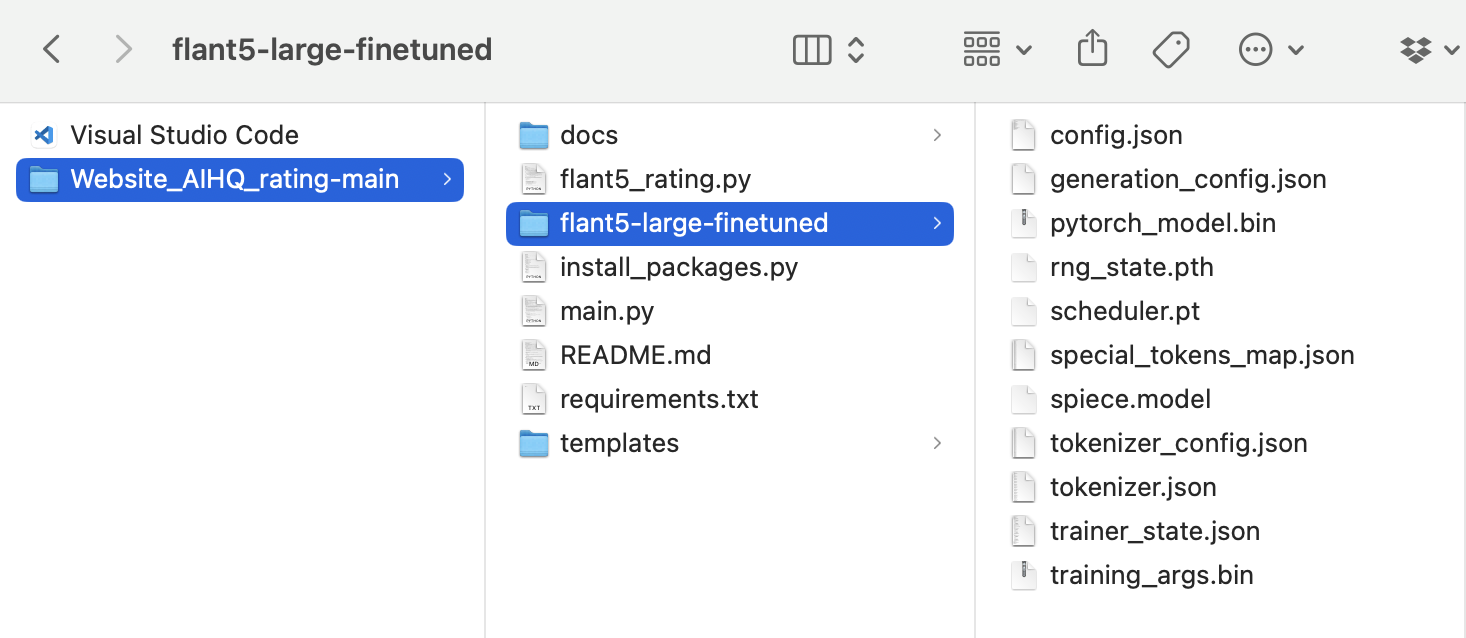
Place the folder in the Website_AIHQ_rating folder:
Drag the
flant5-large-finetunedfolder into theWebsite_AIHQ_rating-mainfolder.When you are done, your folder structure should look like:
Open Terminal:
Press Command (⌘) + Space, type Terminal, and press Enter to open the Terminal
Navigate to the automated-AIHQ folder:
In the command line window, type
cd /path/to/Website_AIHQ_rating-mainand press EnterReplace
/path/to/Website_AIHQ_rating-mainwith the location of the folder where you unzipped the files.
Run the script:
In the same command line window, type
python main.pyand press Enter
Access the automated-AIHQ interface:
Once the installation is complete, the command line will display a link, e.g.,
Open this link in your web browser. The automated-AIHQ interface will appear.
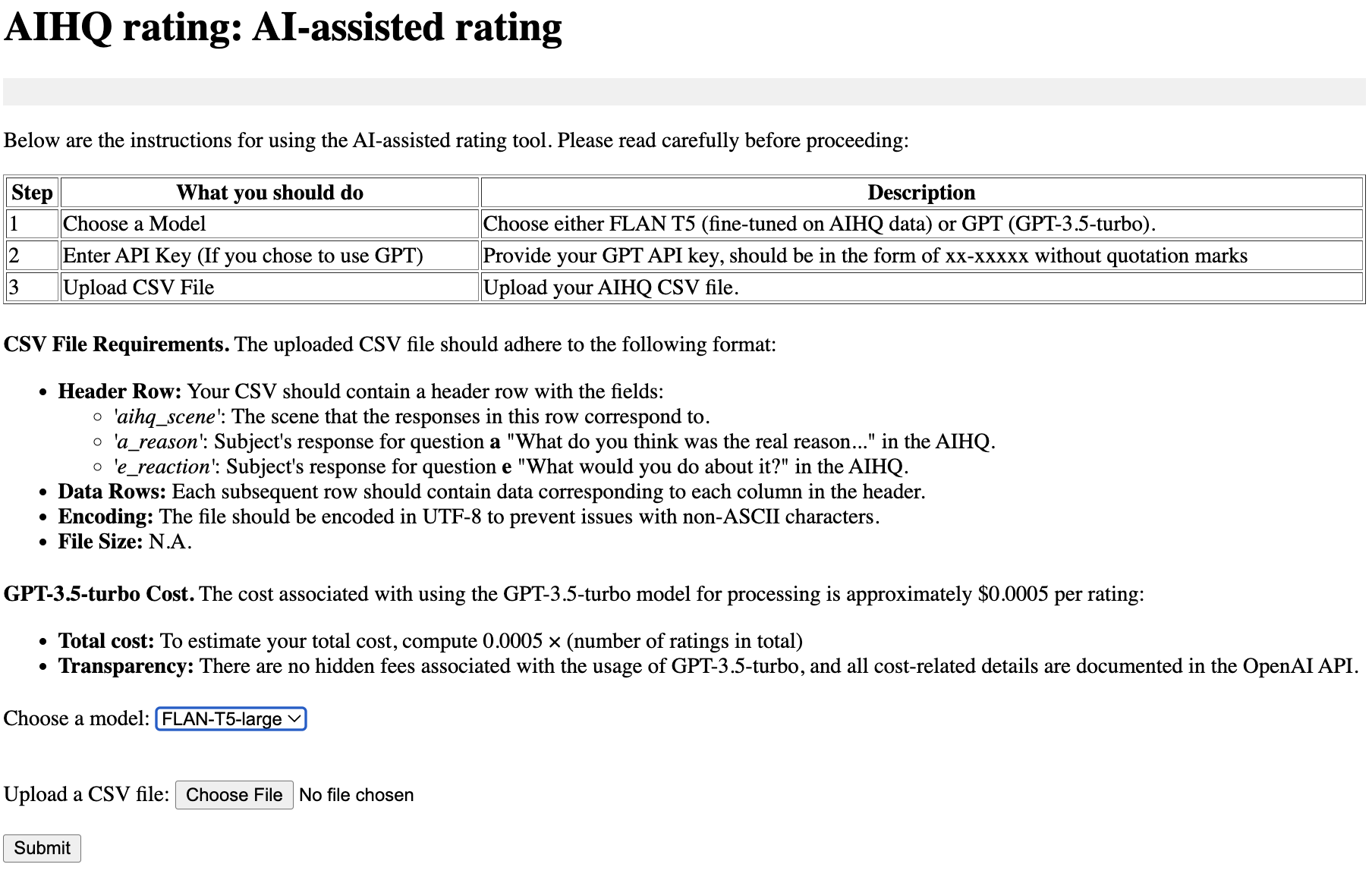
The above image shows the main interface of automated-AIHQ. Here, you begin by selecting a model and uploading your CSV file for rating.
Launching Automated-AIHQ after successful installation
If you have already installed the tool, you just need to follow the following steps to open the tool.
Open Terminal:
Press Command (⌘) + Space, type Terminal, and press Enter to open the Terminal
Navigate to the automated-AIHQ folder:
In the command line window, type
cd /path/to/Website_AIHQ_rating-mainand press EnterReplace
/path/to/Website_AIHQ_rating-mainwith the location of the folder where you unzipped the files.
Run the script:
In the same command line window, type
python main.pyand press Enter
Access the automated-AIHQ interface:
Once the installation is complete, the command line will display a link, e.g.,
Open this link in your web browser. The automated-AIHQ interface will appear.
Troubleshooting
Version mismatch (NumPy/Pandas) error when running python main.py: This is typically due to incompatible package versions. The included installation.py pins:
pandas==1.5.3
numpy==1.24.3
If you still encounter errors, ensure you’re inside the aihqenv environment and then run:
python -V
Confirm it shows Python 3.11.3. Next, reinstall the pinned packages:
python -m pip uninstall -y pandas
python -m pip install pandas==1.5.3
python -m pip install numpy==1.24.3
Then try
python main.py
Model folder not found:
Double-check that flant5-large-finetuned is inside your website folde e.g.:
Website_AIHQ_rating-main/flant5-large-finetuned
Video
Click here for a video showing you how to install automated-AIHQ on your Mac step by step.